
You're planning a new learning management system. Students will enrol, pay fees, and join classes. Now decide who tells them that a payment arrived, an instalment is due, or tomorrow's class has moved.
WhatsApp LMS integration connects those notifications to the records in your learning platform. You can plan fee reminders, receipts, class alerts, exam notifications, and announcements around the way your institution operates.
Start with the messages your staff would otherwise send manually. For each one, agree what triggers it, who receives it, and what information it needs. Then choose the connection and budget for the messaging service.
The same planning applies to an existing LMS, but its available connections need review before you decide what to automate.
What WhatsApp integration adds to your LMS
WhatsApp LMS integration is a connection that lets your learning platform send messages through a WhatsApp API service. Your LMS supplies the student details and the event that triggers a notification, such as a recorded payment. The messaging service handles the request to send it.
An API is the connection software systems use to exchange information. Your staff don't need to work with the API themselves; they need to agree on the rules the connection should follow.
For a fee reminder, those rules might use the student's course, outstanding amount, and next due date. A class alert needs the relevant batch and current timetable.
That means notification planning belongs alongside your fee and course setup. Include it when you define your first LMS release, so the team can review the required records and screens together.
A manual message can still be the right choice for an unusual situation. Build automation around the repeatable work first.
Fee reminders, receipts and class alerts to plan first
Choose a small set of regular notifications, then review how each one works before expanding the list.
| Notification | Trigger to agree | Information to include |
|---|---|---|
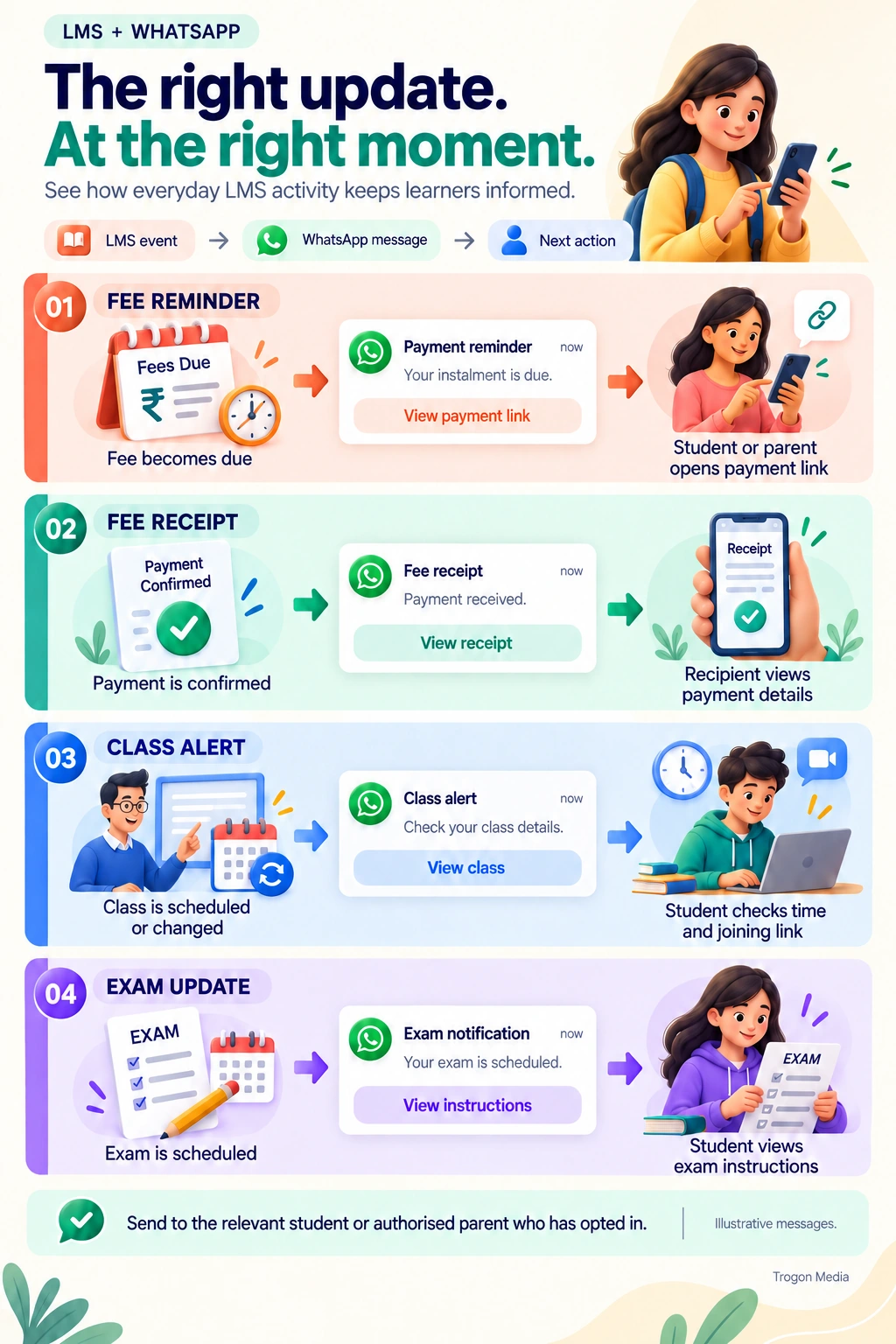
| Fee reminder | A due date approaches or a payment becomes overdue | Student, course, outstanding amount, due date, payment link |
| Fee receipt | A payment is recorded and confirmed | Amount received, payment reference, course, receipt or receipt link |
| Class reminder | A scheduled time before the class | Batch, date, time, location or joining link |
| Class change | Staff confirm a timetable change | Affected class, revised details, any action required |
| Exam notification | An exam is scheduled or its details change | Eligible batch, exam time, instructions, access link |
| Announcement | Staff approve a notice for a selected audience | Relevant update and contact for questions |
Decide the recipient separately for each message. An adult learner may receive their own payment reminder. A school-age student's fee communication may go to an authorised parent contact.
For example, an illustrative reminder could read:
Your next instalment for the Foundation Batch is due on 20 September. Outstanding amount: ₹2,000. View your fee details and payment options: [payment link].
The amount and date must come from the correct record. For courses with staged payments, settle the instalment and student-access rules before deciding when reminders should go out.
Class alerts need the same care. Use the current session details and the agreed joining link. Our live-class integration guide covers how the class itself connects to the LMS.
For exams, agree the eligible batch and instructions alongside your online exam and test-series setup.
Keep announcements relevant to the selected audience. A room change for one batch gives you no reason to message every student in the institution. If you operate several centres, include the branch and staff-access rules when selecting recipients.
Wati or Direct Meta: how the connection works
Trogon Media supports both routes. We plan the connection around your chosen service and the notifications your LMS needs to send. We've implemented multiple notification types, including payment reminders, fee receipts, exam notifications, and announcements.
Many of our clients already use Wati or similar WhatsApp API services. That existing account is part of the requirements discussion: we check the service and the notifications the client wants to connect.
Using Wati
Wati provides APIs for connecting its messaging functions to other systems. Its developer documentation explains the account credentials used to authorise those connections. Your development team handles that setup as part of the agreed custom LMS development scope.
If you already subscribe, bring the account and plan details to the discussion. Ask the team to confirm the API access, message types, and usage limits needed for your workflows before changing your plan.
Connecting directly to Meta
Direct Meta means connecting your LMS to Meta's WhatsApp Cloud API. The API supports sending messages and receiving updates through webhooks, which are notifications one system sends to another.
For this route, agree where staff will handle replies, how they'll see delivery problems, and who maintains the connection. Include those tasks in the project discussion.
Choose around the work your institution needs to do. For a new build, compare the setup needed for your notifications and staff workflow. If an existing service meets those requirements, check what you would gain before taking on an account change.
What WhatsApp LMS integration costs
WhatsApp integration is included with Trogon LMS. If you already have a suitable Wati or similar subscription, we use that as the starting point. If you need a subscription, we guide you through choosing one.
Budget separately for the services used to send messages. As checked on 15 September 2026, Wati lists a subscription fee, messaging fees, and optional add-ons as separate cost components. Wati's pricing explanation
| Cost | What to clarify |
|---|---|
| LMS integration | Included with Trogon LMS; agree the notification requirements during scoping |
| Provider subscription | The recurring plan cost if you use Wati or another subscription service |
| Messaging usage | The applicable charges for your message categories and recipient markets |
| Provider extras | Any additional users, automation capacity, or other features your selected plan requires |
For the direct route, check Meta's applicable messaging charges. Meta's published model charges for delivered messages according to the recipient market and message category, with free-message exceptions. A direct connection still needs a messaging budget. Meta's pricing page
Estimate usage from your timetable and fee cycle. Count the reminders, receipts, and class alerts you expect to send, including separate recipients where required. Price each category separately. Then add the provider subscription and any extras required for the plan you choose.
Keep the institution's wider LMS infrastructure and maintenance budget alongside this estimate. WhatsApp charges are one part of operating the platform.
Keep notifications aligned with payments and class changes
The awkward cases are worth testing early.
Suppose a reminder is scheduled for Friday, but the student pays at the office on Thursday. Agree how that recorded payment should affect the pending reminder, then demonstrate the behaviour during testing.
For your WhatsApp LMS integration, write down the required outcomes:
- A full payment should remove the need for another reminder for that instalment.
- A partial payment should leave the correct remaining balance.
- An offline payment should follow the agreed confirmation process before a receipt is issued.
- A class change should prompt a review of any reminder using the old timetable.
These are acceptance checks to agree for your build. Include whoever records offline payments in the review, because the timing of their update affects what the LMS knows. Our guide to managing offline and online classes together explains how admissions, payments and course records connect.
Ask what happens when a student pays through a link. A click alone doesn't confirm payment; test the payment result and the LMS record together. Our payment-gateway guide explains the wider payment connection.
Check repeat actions too. If staff save the same record twice, what prevents an unwanted second receipt? Have the delivery team show the agreed handling.
Connecting WhatsApp to an existing LMS
Start with a review of the current platform. Ask its provider or development team whether it offers an API or another supported way to access the events and records your notifications need.
Be specific. Access to a student list doesn't establish that the system can report a confirmed payment or a changed class time.
Bring a short notification list to that review. Include the existing WhatsApp service, the required student fields, and the point at which each message should be triggered.
The result should tell you which workflows can be connected, which need changes, and what those changes involve. Confirm the scope and price for work on an existing platform separately.
If your current system already handles the messages you need, keep using that capability.
What to prepare before switching notifications on
Prepare the inputs while your LMS is being planned. Assign setup and testing time within your LMS development timeline:
- Select the first notification types and their triggers.
- Confirm the student or parent recipient for each.
- Review the WhatsApp account and provider plan.
- Prepare message templates and the required permissions.
- Test messages against representative student records.
- Assign staff to handle replies and delivery problems.
WhatsApp requires recipient opt-in and respect for opt-out requests. It also requires approved message templates when you contact a recipient outside the 24-hour customer-service window. Plan for both during enrolment setup. WhatsApp Business Messaging Policy
During testing, read the message on the recipient's phone. Check the name, amount, date, and destination of every link. Open the class link using a student account, and check that a receipt belongs to the intended payment.
Test the exceptions next. Try a wrong number, a partial payment, a changed class, and a student who has opted out. Agree how staff will identify a failed notification and contact the person through an appropriate alternative.
We prefer to review a complete fee-notification workflow first. It gives accounts staff a concrete task to check and exposes questions about payment records early.
For your Trogon LMS requirements discussion, bring the messages you want to send and the WhatsApp service you already use, if any. We'll use those details to plan the connection and guide you on the subscription setup where needed.
Plan your LMS notifications
Connect your LMS with WhatsApp
Share your notification list and existing WhatsApp service so we can discuss the connection and subscription setup.
Connect on WhatsApp