
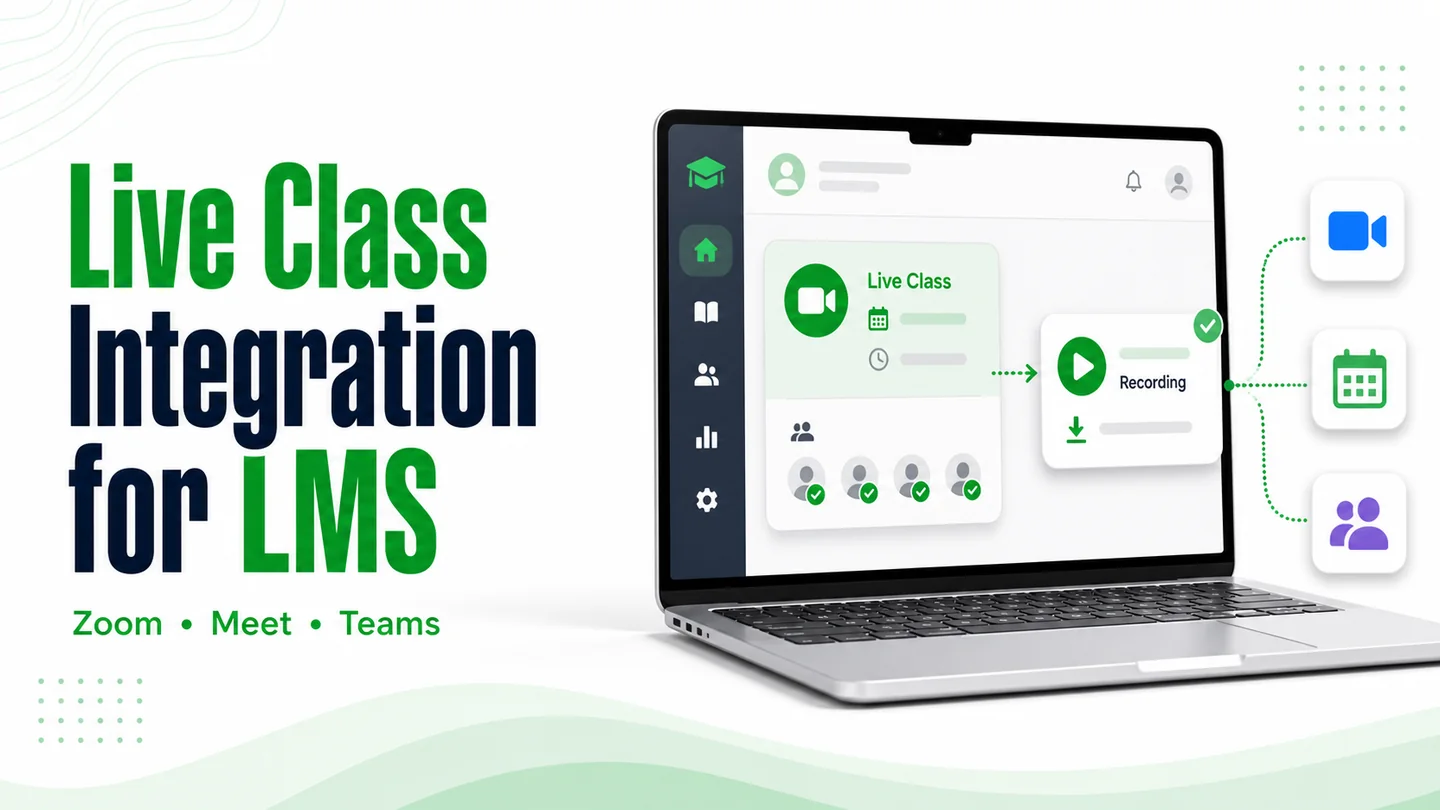
Zoom, Google Meet, Microsoft Teams, and YouTube Live can all run a live class. The bigger difference is what happens after the call ends.
Live-class tools are often judged on video quality, whiteboards, and breakout rooms. The work that costs an institute time comes later: finding the recording, renaming it, uploading it to the right course, and working out who attended.
Short answer: use the meeting tool your teachers already know, then connect it properly. A useful LMS integration should schedule the class, admit the right learners, return the recording, and update attendance with as little manual work as possible.
What Live Class Integration Actually Means
Live class integration means the LMS and video provider exchange information—not simply that a meeting link appears on a course page. Four different setups are often described as an integration:
- A pasted link. A teacher creates a meeting and copies its URL into the course. This is convenient, but it does not automate anything.
- Calendar or plugin booking. The LMS can create the meeting, but nothing returns after the class.
- An API connection. The LMS creates the session and collects the outputs the provider makes available, such as participant sessions and recordings.
- A self-hosted video stack. You run the streaming infrastructure yourself and take responsibility for reliability, scaling, and support.
Level three is where most after-class administration can disappear. It is also the level to ask for when a platform says it includes live classes.
Zoom, Meet, Teams, or YouTube Live?
| Option | Best for | Typical interactive capacity | Recording and attendance | The catch |
|---|---|---|---|---|
| Google Meet | Institutes using Google Workspace | 100–500 on common editions; selected enterprise editions go higher | Recording and attendance are available on eligible editions; the Meet API exposes recordings and participant sessions | Features depend on the Workspace edition and admin settings |
| Zoom | Institutes running several interactive batches | 100 on Basic and Pro, 300 on Business, 500 on Enterprise; larger add-ons are available | Cloud recordings and participant reports can be connected to an LMS | Cloud storage, report access, and capacity vary by account |
| Microsoft Teams | Colleges and companies already using Microsoft 365 | Up to 1,000 interactive participants, with additional view-only capacity | Recordings and attendance reports are available; Graph APIs can retrieve meeting artifacts | Usually needs the most coordination with the Microsoft 365 administrator |
| YouTube Live | Large one-way sessions and public seminars | Designed for broadcast audiences rather than an interactive class roster | Streams under 12 hours can be archived automatically; analytics do not replace student attendance | It cannot reliably identify each enrolled learner from a viewer count |
| Self-hosted video | Products where live video itself is the differentiator | Whatever your architecture can support | Whatever your team builds | High engineering and operational responsibility |
Provider limits and included features change. The figures above were checked against official provider documentation on 1 September 2026; confirm the exact limits on your own account before rollout.
Official documentation used for this comparison
Google Meet participant limits, Google Meet API capabilities, Zoom meeting limits, Teams large-meeting guidance, and YouTube live-stream archiving.
Six Questions to Ask Before You Pick
- What is your largest batch? A session over 300 learners narrows the practical interactive options.
- Does attendance count? If it does, a public broadcast and a view count are not enough.
- Which provider do you already pay for? Start by checking the Workspace or Microsoft 365 account your staff already uses.
- Do students rewatch classes? If yes, automatic recording delivery matters more than small differences in meeting features.
- Is the session two-way? A public lecture needs different tools from a tutorial where every learner speaks.
- What do teachers already know? Familiar software usually lowers training and support effort.
For many institutes, the answer is decided by questions two and three: whether identity-based attendance matters and which licence is already in place.
Check the join and replay journeys in your LMS mobile app and web app before rollout, using the devices your batches actually use.
Why We Usually Start with Meet or Zoom
Video quality is not the deciding factor for most batches. Familiarity and integration depth are.
- Many institutes already have one. Staff email and calendars often mean a Workspace or Microsoft 365 licence is already active, while Zoom may already be part of daily teaching.
- Teachers need less training. A familiar join flow is easier to adopt than a new classroom interface.
- The APIs cover the important work. Meetings, participants, sessions, and recordings can be connected to course and batch records.
- Students know how to join. Fewer unfamiliar screens usually mean fewer support messages before a class.
There are two clear exceptions. If a college is already standardized on Teams and its administrators support it, Teams is the sensible choice. If the session is a public one-way seminar, YouTube Live may fit better than an interactive meeting.
Where YouTube Live Fits
YouTube Live is useful when reach matters more than individual participation: a public orientation, free seminar, product demonstration, or large doubt-clearing broadcast.
Its main limitation is identity. YouTube can tell you how many people watched and how they engaged with the stream. It does not give an LMS the same reliable student roster as a scheduled meeting where learners sign in with a known account.
If attendance affects certificates, report cards, or parent communication, do not treat a viewer count as attendance. Use an identity-aware meeting tool for those classes.
YouTube Live is a strong fit for:
- Free public sessions where you want broad reach
- Large lectures where attendees do not need to speak
- Events that should remain on a public video channel afterwards
- A second live option alongside Meet, Zoom, or Teams
YouTube says streams under 12 hours can be archived automatically. That makes replay delivery simple, but a local backup is still a sensible safeguard for important sessions.
What Happens After the Class Ends
A manual workflow usually looks like this: the teacher waits for the recording to process, downloads it, renames it, uploads it to the course, and posts a message to the batch. Repeating that for several daily classes creates a small administrative job that never really goes away.
A proper API integration gives the LMS a much simpler path:
Students then find the recording beside the lesson, notes, and assignment. The teacher does not have to move a file or remember which batch page to update.
Plan video hosting for class recordings as well as the live session: replay access, storage and viewing hours affect the ongoing setup.
Google Meet's API can return recording artifacts and participant sessions after a conference. Teams exposes attendance reports and meeting recordings through Microsoft Graph, subject to permissions and policy. Zoom supports cloud-recording workflows and account reporting. The exact implementation is different, but the LMS experience can be consistent.
Attendance You Do Not Have to Mark
When students join with identities the LMS can match, participant session data can update attendance automatically. Join time, leave time, and total duration can flow into the learner record instead of a separate spreadsheet.
This is particularly useful when attendance feeds another process:
- a certificate that requires minimum participation
- a report card or parent communication
- intervention for learners who repeatedly miss classes
- batch-level engagement reports for administrators
Google Meet, Zoom, and Teams can all support this pattern, although plan, permission, and identity rules apply. YouTube Live cannot reliably map a general viewer to an enrolled student, so it should not be the source of record when attendance matters.
Identity is the detail that makes attendance work
A participant called “Student” or an anonymous phone caller cannot always be matched safely. The integration should require an authenticated learner account or another identifier that connects the meeting participant to the LMS enrolment.
You Do Not Have to Pick Just One
An institute can run daily interactive batches on Meet or Zoom, where recordings and attendance return to the LMS, then use YouTube Live for a large public seminar where reach matters more than a register.
The course page can present both as “Join live class.” Students do not need to understand which API sits behind the button, and administrators can choose the right provider for each event.
This flexibility is a practical advantage of a custom-built LMS. A fixed platform gives you the integration its vendor selected. A custom platform can keep the provider choice separate from courses, learners, and reporting, so it is easier to add or switch a provider later. Our custom, white-label, and pre-built LMS comparison covers the broader trade-offs.
How Live Classes Work in a Trogon Custom LMS
On a custom build, we shape the live-class workflow around the way your batches already run:
- Use the provider you already have. Meet, Zoom, Teams, or another suitable service can sit behind the LMS.
- Schedule from the course or batch. The session is connected to the right learners from the start.
- Return the useful outputs. Where the provider and plan allow it, recording and participant data can update the LMS after class.
- Use more than one provider. Interactive classes and public broadcasts do not need to share the same tool.
- Change later without migrating the LMS. Courses, learners, progress, and historical records remain part of your platform.
The provider is one layer of the system, not the system itself. That separation keeps the learning platform stable while your live-class needs change.
Common Questions
How many students can join one live class?
Capacity depends on the provider and your exact plan. Google Meet commonly supports 100 to 500 participants, Zoom ranges from 100 to 500 before optional larger-meeting add-ons, and Teams supports up to 1,000 interactive participants. Confirm your account before scheduling a large batch.
Can students rewatch a live class later?
Yes, if the recording reaches the right course. A connected LMS can collect or link the finished recording and publish it beside the lesson for that batch.
Will live classes work on phones and slower connections?
All four options support mobile viewing, but the experience still depends on the student's connection. Automatic recording delivery gives students a reliable way to catch up after an interrupted class.
Can an LMS mark attendance automatically?
Yes, when the provider exposes participant sessions and students join with identities the LMS can match. Meet, Zoom, and Teams support attendance data, subject to plan and admin settings.
Can we switch providers later?
On a custom platform, yes. Your courses, students, and history live in the LMS, not in the meeting tool, so the integration can change without rebuilding the learning platform.
Can one LMS use more than one live-class provider?
Yes. Daily batches can use an interactive provider while public sessions use a broadcast platform. Both can be managed from the same LMS.
Where to Start
Start with the provider your institute already pays for and your teachers already know. Confirm that its capacity, recording, and attendance features are included in your edition.
For several batches joining at once, also plan for the LMS login and course-access workload. Our LMS capacity-planning guide covers the platform demand alongside video and live-class services.
Then decide what should happen after the class. If recordings and attendance still depend on a teacher or administrator remembering a manual step, the integration is not finished.
Include those outcomes in your LMS launch testing checklist, with a teacher scheduling a session and a learner opening its replay.
Add a second provider only when you have a genuinely different job—for example, a large public seminar that does not need an attendance register.
Plan your live-class setup
Connect Live Classes to the Rest of Your LMS
Tell us how many batches you run, how students join, and what currently happens to recordings and attendance. We will help you map a practical integration around the tools you already use.
Connect on WhatsApp